Today I wanted to play and convert several video files with different extensions that were not recognised by QuickTime Player which is the default Mac video player.
Sometimes, I will upload video to a website to do the conversion, but this time I wanted to avoid the slow broadband upload. I also wanted to grab some social media clips for commentary and reference, and I knew there had to be a better way than screen recording.
So, this was an excuse to finally play around with FFmpeg and make proper use of the power in the laptop.
I’m working on an Intel MacBook Pro running macOS Sequoia.
I think if you are spending all day coding, you can probably do these things with your eyes closed, but it’s taken me a fair bit of digging around to get to an efficient way of doing things.
So here we go.
If you have FFmpeg and yt-dlp already installed
If you’ve already got FFmpeg and other useful utilities like HomeBrew and yt-dlp installed then you can skip to the end of the article to find the command line prompts I settled on to make Mac friendly mp4 files.
Otherwise, read on. You will need to be using the Terminal app on the Mac to control things from the command line.
FFmpeg
FFmpeg is a cross-platform solution to record, convert and stream audio and video.
Initially, I thought I would be able to install it just like an app, but the project website is pretty hard to follow, and I could not figure it out.
A blog by PhoenixNAP showed that I could install it using HomeBrew.
HomeBrew is a Package Manager for macOS (or Linux) that “installs the stuff you need that Apple didn’t.”
Installing Xcode
HomeBrew is installed from the command line, but first I needed to allow the terminal to interpret the install command.
Another post by PhoenixNAP laid out the pathway, but I could not install the Xcode Command Line Tools from the terminal.
So I installed Xcode, Apple’s suite of software development tools from the App Store.
When I opened a new terminal window, there were instructions from Xcode to type at the prompt to accept license agreements and permissions to run.
Now I can check from the command line that I have Xcode installed:
$ xcodebuild -version
Xcode 16.2
Build version 16C5032a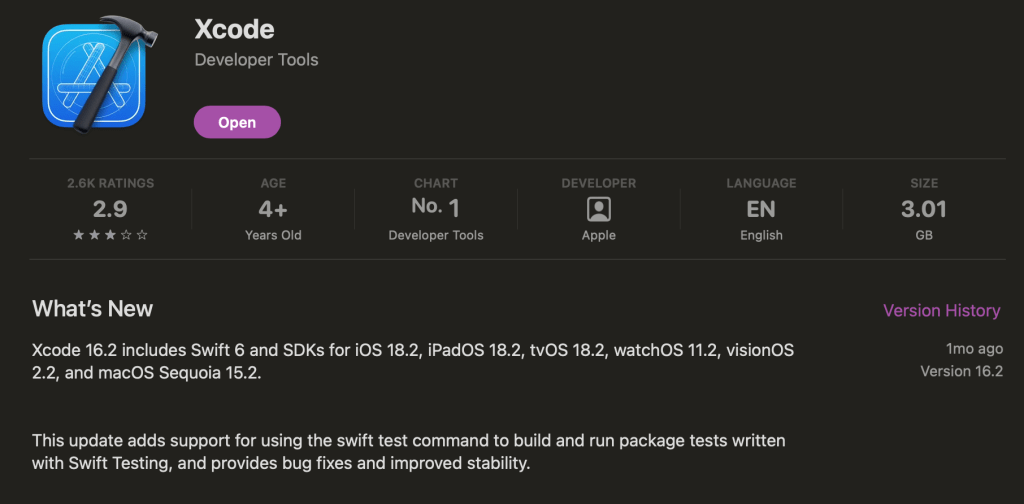
Installing HomeBrew
HomeBrew is installed with the following script at the terminal prompt:
/bin/bash -c "$(curl -fsSL https://raw.githubusercontent.com/Homebrew/install/HEAD/install.sh)"I then checked HomeBrew was up to date and switched off analytics as suggested by PhoenixNAP.
$ brew update
==> Updating Homebrew...
Already up-to-date.

$ brew analytics
InfluxDB analytics are enabled.
Google Analytics were destroyed.

$ brew analytics off
InfluxDB analytics are disabled.
Google Analytics were destroyed.
Installing FFmpeg
With HomeBrew installed, I could now install FFmpeg:
$ brew install ffmpegWhich then gives a lot (ie lines and lines and lines) of downloading, fetching and installing info that starts like this:
$ brew install ffmpeg
==> Downloading https://ghcr.io/v2/homebrew/core/ffmpeg/manifests/7.1_4-1
########################################################################################################################### 100.0%
==> Fetching dependencies for ffmpeg: brotli, giflib, highway, imath, jpeg-turbo, libpng, xz, lz4, zstd, libtiff, little-cms2, libdeflate, openexr, webp, jpeg-xl, libvmaf, aom, aribb24, dav1d, freetype, fontconfig, frei0r, ca-certificates, gmp, libunistring, gettext, libidn2, libtasn1, nettle, p11-kit, openssl@3, libevent, libnghttp2, unbound, gnutls, pcre2, python-packaging, mpdecimal, readline, sqlite, python@3.13, glib, xorgproto, libxau, libxdmcp, libxcb, libx11, libxext, libxrender, lzo, pixman, cairo, graphite2, icu4c@76, harfbuzz, lame, fribidi, libunibreak, libass, libbluray, cjson, libmicrohttpd, mbedtls, librist, libsoxr, libssh, libvidstab, libogg, libvorbis, libvpx, opencore-amr, openjpeg, opus, rav1e, libsamplerate, flac, mpg123, libsndfile, rubberband, sdl2, snappy, speex, srt, svt-av1, leptonica, libb2, libarchive, pango, tesseract, theora, x264, x265, xvid, libsodium, zeromq and zimg
I checked that it was installed:
$ ffmpeg

ffmpeg version 7.1 Copyright (c) 2000-2024 the FFmpeg developers
  built with Apple clang version 16.0.0 (clang-1600.0.26.4)
  configuration: --prefix=/usr/local/Cellar/ffmpeg/7.1_4 --enable-shared --enable-pthreads --enable-version3 --cc=clang --host-cflags= --host-ldflags='-Wl,-ld_classic' --enable-ffplay --enable-gnutls --enable-gpl --enable-libaom --enable-libaribb24 --enable-libbluray --enable-libdav1d --enable-libharfbuzz --enable-libjxl --enable-libmp3lame --enable-libopus --enable-librav1e --enable-librist --enable-librubberband --enable-libsnappy --enable-libsrt --enable-libssh --enable-libsvtav1 --enable-libtesseract --enable-libtheora --enable-libvidstab --enable-libvmaf --enable-libvorbis --enable-libvpx --enable-libwebp --enable-libx264 --enable-libx265 --enable-libxml2 --enable-libxvid --enable-lzma --enable-libfontconfig --enable-libfreetype --enable-frei0r --enable-libass --enable-libopencore-amrnb --enable-libopencore-amrwb --enable-libopenjpeg --enable-libspeex --enable-libsoxr --enable-libzmq --enable-libzimg --disable-libjack --disable-indev=jack --enable-videotoolbox --enable-audiotoolbox
  libavutil      59. 39.100 / 59. 39.100
  libavcodec     61. 19.100 / 61. 19.100
  libavformat    61.  7.100 / 61.  7.100
  libavdevice    61.  3.100 / 61.  3.100
  libavfilter    10.  4.100 / 10.  4.100
  libswscale      8.  3.100 /  8.  3.100
  libswresample   5.  3.100 /  5.  3.100
  libpostproc    58.  3.100 / 58.  3.100
Installing yt-dlp to get videos from social media
I was reading a TIL from Simon Willison about using FFmpeg to download conference video, but I realised his shell script was calling a program yt-dlp first before using FFmpeg.
yt-dlp is a command-line audio/video downloader with support for thousands of sites (YouTube, TikTok, Twitter, Instagram, etc.) and it has an enormous list of options.
I wanted to test yt-dlp download from YouTube. The command is simple:
$ yt-dlp https://www.youtube.com/watch\?v\=gMmDP3u0c0sThe URL is for the YouTube video you want to download. In this case, it’s the story trailer for the first episode of the LEGO Monkie Kid cartoon series (totally amazing, by the way, go watch it!)
Running yt-dlp gives this output:
[youtube] Extracting URL: https://www.youtube.com/watch?v=gMmDP3u0c0s
[youtube] gMmDP3u0c0s: Downloading webpage
[youtube] gMmDP3u0c0s: Downloading tv client config
[youtube] gMmDP3u0c0s: Downloading player 1080ef44
[youtube] gMmDP3u0c0s: Downloading tv player API JSON
[youtube] gMmDP3u0c0s: Downloading ios player API JSON
[youtube] gMmDP3u0c0s: Downloading m3u8 information
[info] gMmDP3u0c0s: Downloading 1 format(s): 137+251
[download] Destination: LEGO Monkie Kid Story Trailer - A Hero Is Born [gMmDP3u0c0s].f137.mp4
[download] 100% of   33.35MiB in 00:00:01 at 21.53MiB/s
[download] Destination: LEGO Monkie Kid Story Trailer - A Hero Is Born [gMmDP3u0c0s].f251.webm
[download] 100% of    1.35MiB in 00:00:00 at 3.35MiB/s
[Merger] Merging formats into "LEGO Monkie Kid Story Trailer - A Hero Is Born [gMmDP3u0c0s].mkv"
Deleting original file LEGO Monkie Kid Story Trailer - A Hero Is Born [gMmDP3u0c0s].f251.webm (pass -k to keep)
Deleting original file LEGO Monkie Kid Story Trailer - A Hero Is Born [gMmDP3u0c0s].f137.mp4 (pass -k to keep)
Which will give you a single video in mkv format, that plays video with synched audio, the same as heard when playing the video on YouTube.
- LEGO Monkie Kid Story Trailer – A Hero Is Born [gMmDP3u0c0s].mkv
mkv is a universal format for storing storing multimedia content such as movies and TV shows. It supports a much wider set of video and audio codecs compared to the more widely known mp4.
You can play mkv files directly from the command line – see below.
But I noticed the yt-dlp code deleting original files and suggesting to use the -k option to keep intermediate files.
$ yt-dlp -k https://www.youtube.com/watch\?v\=gMmDP3u0c0s This gives 3 download files:
- LEGO Monkie Kid Story Trailer – A Hero Is Born [gMmDP3u0c0s].mkv (picture and audio)
- LEGO Monkie Kid Story Trailer – A Hero Is Born [gMmDP3u0c0s].f251.webm (audio only)
- LEGO Monkie Kid Story Trailer – A Hero Is Born [gMmDP3u0c0s].f137.mp4 (picture only)
I wondered if it was possible to us yt-dlp to get mp4 version only to save having to convert from mkv and remove a processing step.
Jeff Geerling had a similar problem, so I used this slightly altered code to first try to pull a native MP4 version off YouTube:
$ yt-dlp -S res,ext:mp4:m4a https://www.youtube.com/watch?v=dQw4w9WgXcQBy default, yt-dlp tries to download the best available quality if you don’t pass any options. You can change the criteria for being considered the best by using -S, in this case look for mp4, m4a and save those.
If there is not an mp4 version, then the mkv file can be converted using FFmpeg.

Fixing yt-dlp Mac Finder compatibility issues
Some videos will play using ffplay or mpv, but not be playable from the Finder on a Mac. Why is this?
It turns out that the mp4 container can contain video and audio in other codecs like vp9 and Opus whereas the Mac, DaVinci Resolve and many other applications are expecting h264 video and aac audio.
This clip from The Daily Show with Stephen Colbert suffers from the problem when downloaded. Using ffprobe from the FFmpeg suite shows that the video stream is 30fps VP9 codec, and it won’t play from Mac Finder.
For yt-dlp, +codec:avc:m4a (equivalent to +vcodec:avc,+acodec:m4a) sets the video codec preference to h264 > h265 > vp9 > vp9.2 > av01 > vp8 > h263 > theora and audio codec preference to mp4a > aac > vorbis > opus > mp3 > ac3 > dts.
So, to get the best quality h264+aac final file plus subtitles, and to keep all the downloaded files, use:
$ yt-dlp --write-subs --write-auto-subs -k -S res,+codec:avc:m4a https://www.youtube.com/watch\?v\=FWsSo97YWe0If only the best video is needed, omit the --write-subs --write-auto-subs -k options.
As an aside, if you want to see all the possible download formats, use
$ yt-dlp --geo-bypass -F https://www.youtube.com/watch\?v\=FWsSo97YWe0-F lists all the available formats of each video, while --geo-bypass will show options for all locations.
Playing video from the command line with ffplay and mpv
Play video from the command line using ffplay:
$ ffplay temp.mkvHowever, this is a barebones player, with no onscreen controls. To get a video seek bar, plus other controls, mpv is a free, open source, cross-platform media player with a small controller on top of the video for basic control. It will also automatically pick up and play subtitles, if your subtitle files have the same name as the video and are in the same folder.
$ brew install mpv

$ mpv temp.mkv
Converting video to mp4 with ffmpeg
And so finally, to convert a video to mp4 with widest compatibility and quality, use the following FFmpeg command (inspired by this discussion from 2014!):
ffmpeg -i temp.webm -c:v libx264 -c:a aac temp.mp4 In this command, replace temp.webm with the file you want to convert, and replace temp.mp4 with the filename you want to write to.
 Martyn James Bull
Leave a comment